



Mouser's new and improved Customer Order History tools make it even easier to manage your current and previous orders from one central location. Log in to My Mouser to take advantage of these convenient and powerful new features*.
- Sort
- Filter
- Rearrange Columns
- Resize Columns
- Search Part History
- Send Statement of Account
- Export to Excel /PDF
 SORT Order History
 FILTER Order History
 REARRANGE Columns
 RESIZE Columns
 SEARCH Order History
Sort Order History
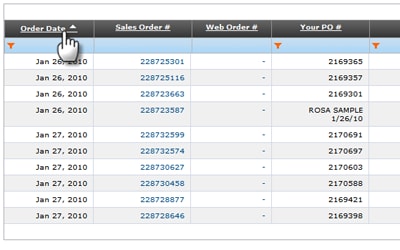
You are now able to sort your order history data by simply clicking on any column name. By default, the selected column will be sorted in ascending order, however you can click the column name again to switch to descending order. You will always know which column is being sorted and in which order by looking for the sort indicators/arrows next to a column name.
Filter Order History
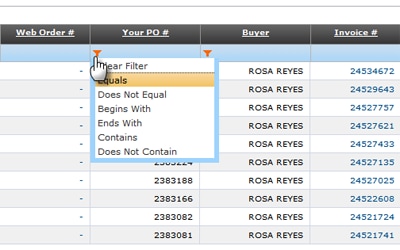
Apply filters to your order history by clicking on the filter icon under a column name to view the filter options (ex: "Equals" or "Contains"). After selecting a filter, type your criteria into the provided field. To apply your new filter, hit the Enter/Return key on your keyboard or use your mouse to click anywhere on the page. The refresh icon ( ) will display while the data matching your filter is fetched.
Rearrange Columns
When viewing your Order History, you may find it beneficial to rearrange the order of the columns being displayed. To do this, click and hold anywhere inside the column header you wish to move, and drag your mouse to the left or right to move the selected column to a new location. Release your mouse button when the column indicator is shown in the desired location.

Resize Column Widths
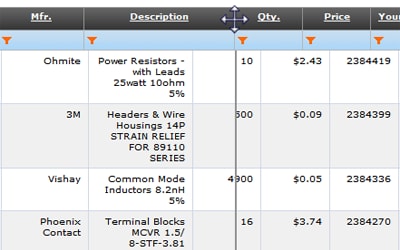
We know some of the data displayed within your order history can be very long, and may sometimes wrap in undesirable locations. Should that ever happen, or if you would just like more space between columns, you can now resize a column's width. Simply place your cursor between the headings of two columns and when you see the double arrow indicator, click, hold, and drag your mouse either left or right to change the column width.
Order History Search
On the Search tab within your Order History, you have the ability to enter any search term and have any order(s) containing that term returned to you as a result. Search terms can consist of part numbers, invoice numbers, and any other data available on your past orders. If you want to view all orders associated with your account, click the 'View All' link next to the search box.

* All new/enhanced Order History Tools require JavaScript be enabled in your web browser. Customers without JavaScript enabled will be able to access the basic version of Order History.